|
Getting Started
The Periodic Table Live! Graphing and Sorting Applet is integrated into Periodic Table Live!. Click the Charts… button at the bottom of any element page in Periodic Table Live! to launch the applet in a new browser window. When the applet is launched, it determines what operating system and web browser you are using and checks to see if all the required software is installed. If it discovers any problems, troubleshooting instructions are displayed. This may take a few moments. If the applet is very slow to load, or if some but not all of the applet windows shown in Figure 1.1 appear, close the browser window and click the Charts… button again. See the Troubleshooting section of the documentation for more help if you have problems starting the applet.
The overall layout of the applet is illustrated in Figure 1.1. The appearance of the windows may differ slightly depending on your operating system and system settings.
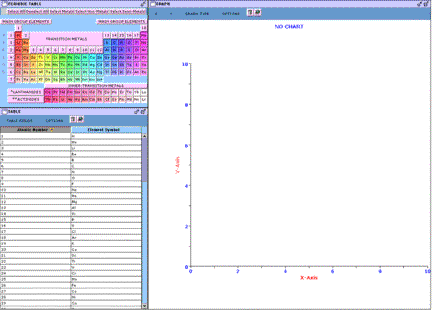
Figure 1.1 – The Periodic Table Live! Graphing and Sorting Applet opens with all elements selected in the PERIODIC TABLE window, the atomic number and element symbol of each element listed in the TABLE window, and no graph displayed in the GRAPH window.
The Periodic Table Live! Graphing and Sorting Applet consists of three main windows, as shown in Figure 1.1, as well as a number of dialog boxes that appear as needed. Each of the windows can be resized, minimized, and maximized using controls in the window’s title bar.
All operation instructions are found in the documentation. No on–screen help is available within the applet.
To return to Periodic Table Live!, you can simply click the Periodic Table Live! window in the browser. You may need to move or minimize the window containing the Graphing and Sorting Applet in order to see the Periodic Table Live! window. You can move back and forth between the Periodic Table Live! and applet windows as many times as you like. However, if you click the Charts… button while the applet is running, it will be reloaded and any information displayed will be lost.
When you are finished using the Graphing and Sorting Applet, simply close the browser window that contains it, or exit the browser application.
| 


