|
TABLE Window
The TABLE window is located in the lower left corner of the browser window, below the PERIODIC TABLE window. The TABLE window displays a more complete set of properties than the GRAPH window. The data in this window are presented in a table as shown in Figure 3.1. Data in any column of the table can be sorted in ascending or descending order by clicking the column header. A column can be resized by clicking and dragging the right or left edge of the column header.
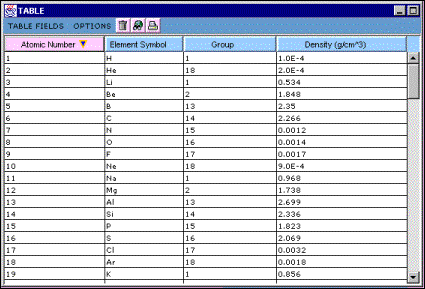
Figure 3.1 – The data listed in the TABLE window has been sorted by atomic number.
There are two important differences between the data that is displayed in the TABLE window and the data that is displayed in the GRAPH window.
- More properties are available for in the TABLE window than in the GRAPH window. Properties such as sources, uses, and reactions of elements, which are not numbers and thus cannot be plotted, can be viewed in the table.
- If an element does not have any data for a particular property, that element will not appear in a graph of that property. However, all data is explicitly shown in the table. For example, consider a plot of Electronegativity (on the y–axis) versus Atomic Number (on the x–axis) in the GRAPH window. Helium’s electronegativity is not defined (using the Pauling Scale), and therefore no data point for helium appears on the graph. But helium is included in TABLE window. The value for helium’s electronegativity is listed in the table as NOT DEFINED.
The TABLE window has two menus and two or three buttons (depending on the operating system). The menus and buttons perform similar, if not exactly the same, actions as the menus and buttons in the GRAPH window.
TABLE FIELDS Menu
The TABLE FIELDS menu allows you to select or deselect propertie s to be displayed in the table. The function of this menu is similar to that of the X menu and Y menu in the GRAPH window. However, as mentioned above, more propertie s are available for selection. Atomic Number, Element Symbol, Group, and Period are listed in the TABLE FIELDS menu rather than in one of the three submenus.
The Atomic Number and Element Symbol properties are listed, but cannot be selected in the TABLE FIELDS menu because they are always present in the table. The TABLE FIELDS menu is illustrated in Figure 3.2. Selected properties are highlighted on the menu with a check mark. Up to three properties may be selected at any one time, so a total of five properties may be viewed simultaneously. If three properties are already selected, selecting another will deselect one of those previously selected.
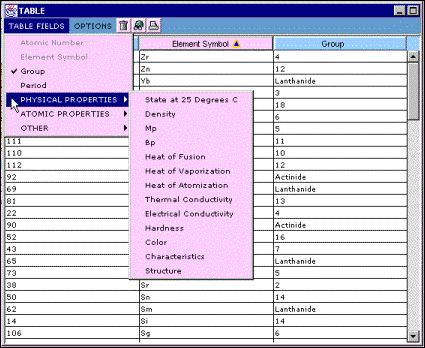
Figure 3.2 – The TABLE FIELDS menu in the TABLE window contains more items than are available in the X and Y menus of the GRAPH window because it includes items that are not numbers and cannot be plotted.
OPTIONS Menu
The OPTIONS menu for the TABLE window is shown in Figure 3.3. The three items in the menu are also found in the OPTIONS menu for the GRAPH window.
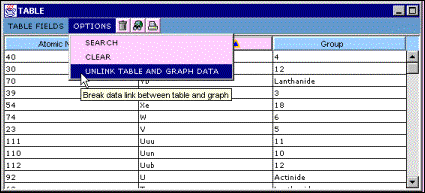
Figure 16 – The TABLE window OPTIONS menu includes three items.
Searching
Select SEARCH from the OPTIONS menu to open the same Search for Elements dialog that is opened when the SEARCH is selected from the GRAPH window Options menu. See the section of the documentation on the GRAPH window for a full description. There are some important differences in the Search for Elements dialog when it is opened from the TABLE window:
- All properties may be searched, not only those that are numerical.
- If a search is performed in a numerical field and the data link between the TABLE and GRAPH windows is enabled, the search results will also be plotted in the GRAPH window.
- If a search is performed within a nonnumerical field while the data link between the TABLE and GRAPH windows is enabled, the properties displayed on the x- and y-axes in the GRAPH window will not change, but the selected elements will change to match the search results.
- There are some differences in the search criteria when searching a non-numerical field. The available operators are equal to and contains . The parameters used for numerical data, greater than and less than, cannot be used.
A search within a non-numerical field is not case-sensitive.
Clearing the Table
Select CLEAR from the OPTIONS menu to remove the user-selected data from the table, leaving only the Atomic Number and Element Symbol columns. Clearing the table while the data link between the TABLE and GRAPH windows is enabled will also clear the graph. If you want to clear the table without altering the contents of the GRAPH window, disable the data link between the table and graph. Clearing the table does not select or deselect any elements.
Linking and Unlinking the GRAPH and TABLE Windows
The UNLINK GRAPH AND TABLE DATA and LINK GRAPH AND TABLE DATA items perform exactly the same functions as in the GRAPH window. See the section of the documentation on the GRAPH window for a full description.
If the data link between the TABLE and GRAPH window sis enabled, selecting a property that is numerical in nature from the TABLE FIELDS menu simultaneously selects the same property from the Y menu in the GRAPH window. If you want to view new fields in the table without changing the current graph, you must disable the data link between the TABLE and GRAPH windows.
Similarly, selecting properties in the X and Y menus of the GRAPH window selects those properties from the TABLE FIELDS menu. Fields displayed in the table are replaced with the newly selected items. If you do not want this to happen, must disable the data link between the TABLE and GRAPH windows.
TABLE Window Buttons
The TABLE window contains either two or three buttons in its menu bar that may be used as shortcuts for manipulating the graph. The number of buttons depends on the operating system you are using.
Clicking the clear button ( )performs the same action as selecting CLEAR from the GRAPH window OPTIONS menu. )performs the same action as selecting CLEAR from the GRAPH window OPTIONS menu.
Clicking the search button ( ) performs the same action as selecting SEARCH from the GRAPH window OPTIONS menu. ) performs the same action as selecting SEARCH from the GRAPH window OPTIONS menu.
Clicking the print button ( ) can be used to send the current graph to a printer. ) can be used to send the current graph to a printer.
Other Features
There are a few other useful features in the TABLE window. The first is the data point highlighting described in the section of the documentation on the GRAPH window. See that section for a full description.
The second feature is data sorting within the table. The contents of the table can be sorted in ascending or descending order according to the data in any table column. Click a column header once to sort the table in ascending order by the data in that column. Click the column header a second time to sort the table in descending order.
The table is always sorted by one of the columns. The default is data sorted by Atomic Number in ascending order. The header of the column that is sorted is colored pink–all other column headers are blue. The sorting method (ascending or descending) is indicated by a small triangle within the pink column header. If the triangle is pointing down, the column is sorted in ascending order. If the triangle is pointing up, the column is sorted in descending order. Figures 3.4 and 3.5 illustrate a table sorted by the Element Symbol field. In Figure 3.4, the table is sorted in ascending (from A–Z) order. In Figure 3.5, the table is sorted in descending (from Z–A) order.
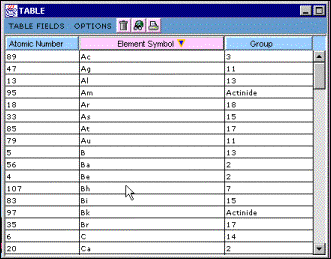
Figure 3.4 – Data in the TABLE window is shown sorted by Atomic Symbol in ascending order.
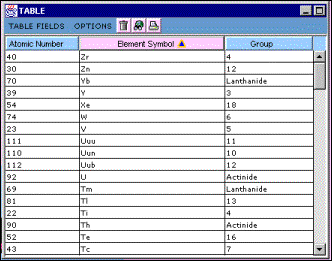
Figure 3.5 – Data in the TABLE window is shown sorted by Atomic Symbol in descending order.
There are two minor issues to keep in mind when sorting data within the table:
- If a column is added or removed from the table, the resulting table will be sorted by Atomic Number in ascending order.
- If value for an element in the field being sorted is not defined, that element will be placed at the bottom of the column.
| 


